 Cutout
 元データ
元データ商品写真
Magic wandClick the background color.
 Cutoutby vztool
元の背景を削除し、色や自分の写真を選んで PNG または JPG で保存できます。どちらの画像もブラウザー内で処理されます。
Your images stay on your device.
TRY IT YOURSELF
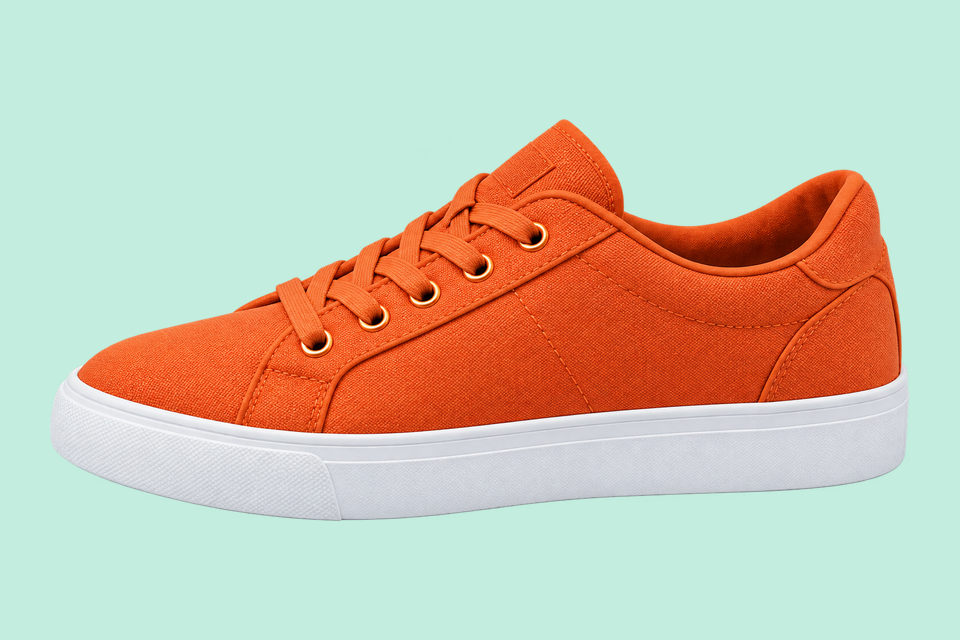
ミント色の背景を使った作成済みの比較例です。「この画像を試す」で元の画像を読み込み、背景を削除してから色や写真を選んでください。
Cutout元データClick the background color.
 Cutout
 元データ
元データRemove the solid backdrop in one click.
 AI 切り抜き
 元データ
元データRemove a garden background and keep natural curls.
From photo to finished cutout, in four steps.
Drop a JPG, PNG or WebP, or try an example.
Click a color, draw a selection, or run AI cutout.
Zoom in, erase or restore, and soften the edge when needed.
Download a transparent PNG, a background-filled JPG, or the mask.
For areas with similar colors.
For a shape you define.

For subjects on complex backgrounds.
元の背景を削除し、色や自分の写真を選んで PNG または JPG で保存できます。どちらの画像もブラウザー内で処理されます。
最初に Classic または AI 切り抜きで元の背景を削除し、輪郭を整えてください。新しい背景を選ぶだけでは元の背景は消えません。
初期設定はミント色です。好きな色や背景写真も選べます。写真はキャンバス全体に配置され、横と縦の位置で切り取り範囲を調整できます。
背景の変更には既存の切り抜きを使います。AI を再実行したり、新しい風景を生成したりはしません。
PNG にも選択した背景が保存されます。背景なしの切り抜きは「透明」を選んでください。JPG は透明部分を白で塗りつぶします。
作成を始めるHELP
Quick answers before your next cutout.
商品写真テンプレートを適用しなければ、元サイズの透過 PNG を一括出力します。
AI 背景削除は無料です。3 回成功するごとに共有先を選ぶと案内が閉じ、続けられます。失敗やキャンセルは数えません。
No. Classic works without AI. Remove a simple background, use the magic wand or draw a lasso. AI cutout is optional for complex subjects.
Use a solid or nearly solid background with a subject of a different color. Gradients, shadows, subjects touching the border and matching colors may need a magic wand or lasso. An uncertain background is left unchanged.
ご自身の画像は端末内に保存されます。共有には用意された Cutout の紹介画像とリンクを使い、ご自身の画像は含めません。
JPG, JPEG, PNG and WebP up to 25 MiB. Images must also fit within 24 million pixels and 16,384 pixels on either side. Invalid replacements leave your current image in place.

