 AI cutout
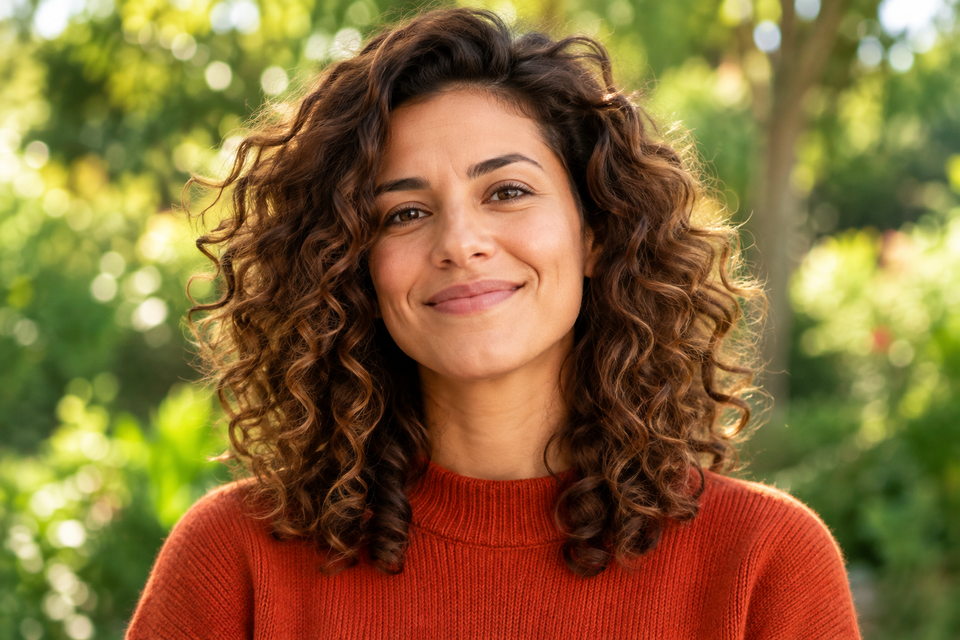
 Original
 Cutoutby vztool
Upload a portrait or take a photo with your camera. Remove the background, frame your photo and export a 300 dpi print sheet. Photos stay in your browser.
Your images stay on your device.
TRY IT YOURSELF
This prepared example uses an actual AI cutout. Load the original to remove its background, choose a color and export your own photo.
AI cutoutOriginal AI cutout
 Original
 AI cutout
 Original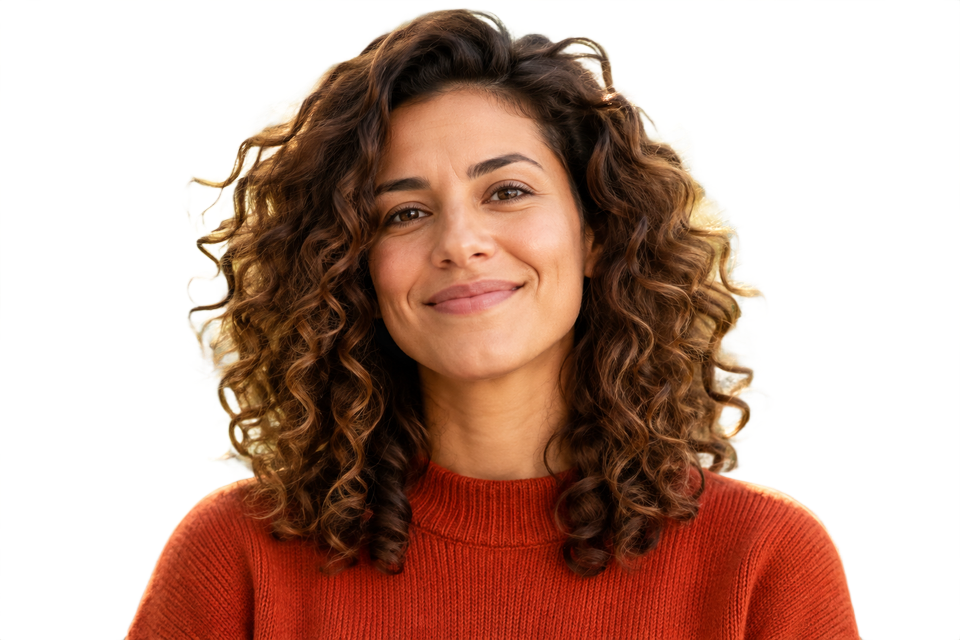
Camera photo guide
Illustrated guide using a sample portrait. These pictures are not a live camera feed.
Choose Take photo beside Upload image. The camera window opens without turning on your camera.
Choose Start camera, then allow camera access in your browser. No microphone access is requested.
Face the lens in even light and keep your head and shoulders in frame. Choose Take photo to use this frame.
The captured photo opens in the editor. Run AI cutout, choose a background, adjust the size and download a photo or print sheet.
Camera access needs HTTPS or localhost in a supported browser.
Size, frame and print your photo.
Upload a clear portrait, or choose Take photo and start the camera. Allow camera access, face the lens in even light, then take a photo to edit.
Run AI cutout to remove the original background. Refine the edges if needed.
Choose the photo size, frame your head and shoulders, then select a background color.
Download a single photo or a 300 dpi sheet. Print at actual size with scaling disabled.
Upload a portrait or take a photo with your camera. Remove the background, frame your photo and export a 300 dpi print sheet. Photos stay in your browser.
Start the camera, then take a photo to edit. The photo stays on this device.
Choose a size or enter millimeters. Size presets do not check face position or guarantee acceptance.
Check the current rules for your document. Some authorities prohibit digital edits, including background replacement. Original photo mode applies framing only.
Download a single photo or a 300 dpi sheet. Print at actual size with scaling disabled.
Start creatingHELP
Quick answers before your next cutout.
Check the current rules for your document. Some authorities prohibit digital edits, including background replacement. Original photo mode applies framing only.
Upload a clear portrait, or choose Take photo and start the camera. Allow camera access, face the lens in even light, then take a photo to edit.
Use HTTPS or localhost, allow camera access in your browser, and close other apps using the camera. You can also upload a photo.
Only a single photo is captured for editing. No microphone is requested and photos are not uploaded. Close the camera window, stop the camera, or hide or leave the page to turn it off.
Batch exports transparent PNGs at original dimensions unless you apply a product photo template.
AI cutout is free. After every 3 successful cutouts, choose a sharing platform to close the prompt and continue. Failed or cancelled runs do not count.
No. Classic works without AI. Remove a simple background, use the magic wand or draw a lasso. AI cutout is optional for complex subjects.
Use a solid or nearly solid background with a subject of a different color. Gradients, shadows, subjects touching the border and matching colors may need a magic wand or lasso. An uncertain background is left unchanged.
Your images stay on your device. Sharing uses a prepared Cutout promotional image and the tool link, never your own images.
JPG, JPEG, PNG and WebP up to 25 MiB. Images must also fit within 24 million pixels and 16,384 pixels on either side. Invalid replacements leave your current image in place.
